
 Back to all posts

Most SEO teams treat Google Search Console as a reporting tool. They log in after a traffic drop, scan for red flags, and close the tab. That's a missed opportunity. GSC is, as the team at indexcraft.in puts it, "the most data-rich free SEO tool available" - and sites that use it consistently outperform those that don't. The gap between those two approaches isn't about effort. It's about knowing what to check, in what order, and what to do with what you find.
Bottom line up front: Google Search Console gives technical SEOs direct access to Google's own crawl, index, and performance data - data no third-party tool can replicate. This guide shows you how to use GSC not just to surface technical issues, but to rank them by business impact, fix them in the right order, and confirm your fixes actually worked. It covers indexing failures, Core Web Vitals, crawl budget, manual actions, structured data, and a repeatable audit cadence you can implement immediately.
This isn't a feature walkthrough. Each section sticks to three things: the diagnostic question worth asking, the exact signals GSC provides to answer it, and the next action. In-house technical SEOs use this workflow to keep releases from quietly breaking search. Agency SEO managers use it to triage client fires fast and document outcomes. Marketing directors use it to connect "we lost traffic" to a specific indexing, crawling, or rendering issue in Google's own systems.
What Google Search Console Actually Tells You About Technical SEO (That Other Tools Can't)
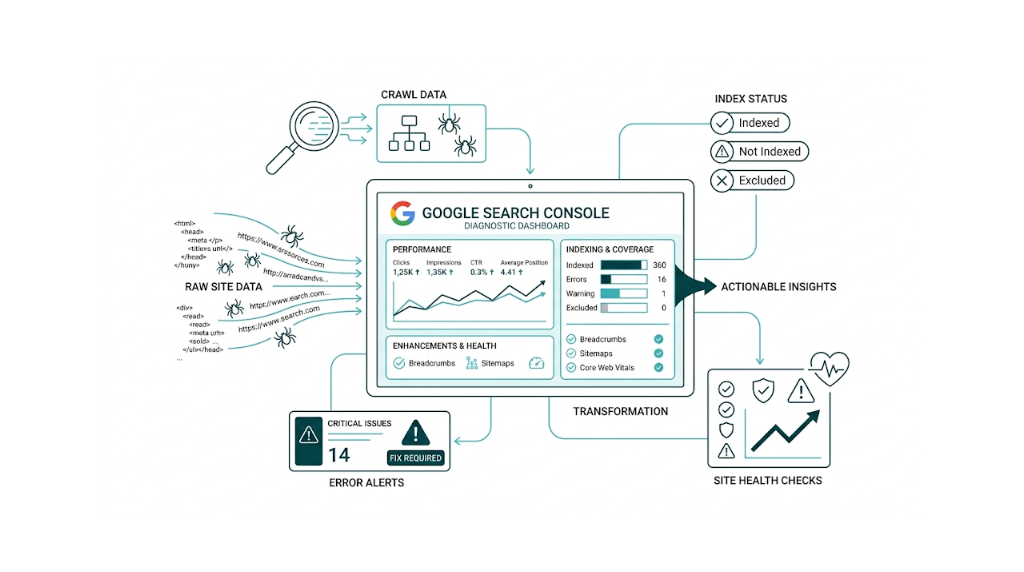
Third-party crawlers like Screaming Frog and Sitebulb are powerful. But they simulate how a bot might crawl your site. Google Search Console shows you what Google's crawler did - which pages it found, which it indexed, which it skipped, how fast it rendered them, and whether it hit something that triggered a manual penalty. That distinction matters in real audits, because it removes guesswork.
Consider a scenario. A mid-market SaaS team spending $3k/month on link building services notices their target pages aren't ranking despite solid backlink profiles. A Screaming Frog crawl shows no obvious errors. But GSC's Pages report reveals that 40 of those pages sit in "Discovered - currently not indexed" status - Google found them but chose not to crawl them. That's a crawl budget signal. No third-party tool can show that exact status, because no third-party tool has access to Google's crawl queue data.
GSC data is first-party. It comes straight from Google's systems. That gives it diagnostic authority that no crawler, rank tracker, or analytics platform can match.
Here's what GSC surfaces that other tools can't:
- Real crawl status - not simulated, but actual Googlebot behavior on your URLs
- Index coverage with Google's own status labels - including the difference between "Crawled - currently not indexed" and "Discovered - currently not indexed"
- Field data for Core Web Vitals - aggregated from real Chrome users, not lab tests
- Manual action notifications - the only place Google officially tells you about penalties
- Rich result eligibility - based on Google's parsing of your structured data
- Impression and click data - showing where your pages appear in search results even when they don't generate traffic
The GSC API extends this further. For agencies or in-house teams managing multiple properties, the GSC API lets you pull crawl stats, index coverage, and performance data programmatically - enabling dashboards and automated alerts so monitoring stays consistent across dozens of sites.
The point isn't that GSC replaces other tools. It doesn't. But for technical SEO, it's the only tool that tells you what Google thinks about your site. Everything else is inference.
How to Set Up GSC Correctly for Technical SEO Auditing (Domain Property vs. URL Prefix)
Logging into Google Search Console is simple - go to search.google.com/search-console and sign in with your Google account. The setup choice that matters is the property type. Pick the wrong one and you'll audit with blind spots.
Domain property covers your entire domain across all subdomains and protocols - HTTP, HTTPS, www, non-www, plus subdomains like blog.yourdomain.com or shop.yourdomain.com. It needs DNS verification, which means adding a TXT record in your domain registrar. For technical SEO auditing, this is the default. It shows you everything Google can crawl, even the subdomain nobody remembered was live. If indexing issues sit on a stray subdomain, a Domain property surfaces them. A URL Prefix property doesn't.
URL Prefix property covers one URL prefix - for example, https://www.yourdomain.com. Verification is faster because you can use an HTML tag, Google Analytics, or Google Tag Manager. The tradeoff is scope: it only reports on that exact prefix. A page served at http://yourdomain.com won't show up inside a https://www.yourdomain.com property.
For technical SEO work, the call is straightforward: set up a Domain property first.
The Domain property gives you the full view. Once it's in place, add URL Prefix properties where they help you segment reporting. If you need to isolate a subdirectory - say, you want /products/ separate from /blog/ - add a URL Prefix property for that section next to the Domain property. Use both. They serve different jobs.
For agencies handling multiple clients, verified sites stay manageable. The Google Search Console login dashboard lets you switch between properties under a single Google account, and you can grant access under Settings > Users and permissions. Assign Full access for people fixing issues and shipping changes. Use Restricted access for stakeholders who only need performance views.
Gaps in trend data are self-inflicted. Get the property type right at the start, because re-verifying halfway through an audit burns time and breaks your baselines. If you're new to running structured audits, the ultimate technical SEO checklist is a useful companion to keep alongside your GSC workflow.
The Pages Report: Your Primary Weapon for Diagnosing Indexing Failures
Those baselines start in the Pages report. Found under Indexing > Pages in the left navigation, it lists every URL Google has discovered and shows what happened next - indexed, not indexed, and the reason. Too many audits stop at the "Not indexed" number. The real value is in reading the status labels as diagnosis, not decoration.
Google groups non-indexed pages into reason categories. Some are harmless. Others point to real technical debt. Here are the ones that matter most and how we treat them.
"Crawled - currently not indexed" means Google crawled the page, processed it, and chose not to index it. Treat this as a content quality signal. Google understood the page and still passed. That usually comes down to thin content, duplication, low value, or weak usefulness versus what Google already has. Don't start by tweaking crawl settings. Fix the page: add substance, make it distinct, tighten relevance, or consolidate it into a stronger URL using canonical tags or redirects.
"Discovered - currently not indexed" points to a different problem. Google knows the URL exists but hasn't crawled it yet. Treat this as a crawl budget signal. Per Google's crawl budget documentation, crawl budget comes from crawl demand (how much Google wants your URLs) and crawl capacity (how much load your server can take before Google backs off). If you have lots of pages in "Discovered - currently not indexed," fix the structure: strengthen internal linking to those pages, confirm they're in your XML sitemap, keep low-value URLs out of crawl scope via robots.txt, and cut crawl waste from paginated, filtered, or duplicate URL patterns.
That split - content quality problem vs. crawl budget problem - dictates the remediation plan. Treating "Discovered" URLs like a content issue sends teams into rewrite cycles that won't move indexing. Treating "Crawled" URLs like a crawl budget issue leads to technical cleanup that won't change Google's decision. Most guides don't clearly distinguish between these two statuses. It's the most important diagnostic fork in the Pages report.
Other status labels worth understanding:
Status Label | What It Means | Typical Fix |
|---|---|---|
Excluded by 'noindex' tag | Page has a noindex directive | Confirm intentional; remove if not |
Blocked by robots.txt | Googlebot can't access the page | Check robots.txt rules for false positives |
Redirect | URL redirects to another URL | Verify redirect chain is clean and intentional |
Soft 404 | Page returns 200 but signals no content | Fix content or return a proper 404/301 |
Duplicate without canonical | Multiple versions exist, none canonicalised | Implement self-referencing canonicals |
Alternate page with proper canonical | Correctly canonicalised duplicate | Usually benign - confirm canonical target is indexed |
Not found (404) | Page returns a 404 error | Fix or redirect if the URL has value |
Work the Pages report like a queue, not a glance. Export the full list as a CSV, sort by status, and run each category as its own workstream with a clear owner and a specific fix list.
How to Triage and Prioritise Indexing Errors by Business Impact
Not every non-indexed page needs attention.
A site with 10,000 URLs in "Excluded by 'noindex' tag" can still be healthy if those URLs are parameter variants, staging pages, or thank-you pages that should never rank. The useful framing is revenue, not raw counts. Focus on which non-indexed URLs should be indexable and what the upside is if they start showing up in search.
Prioritise by three criteria:
- Business value of the URL - Separate money pages from noise. Product pages, service pages, and high-intent posts belong in the index. Filtered search result pages with thin or duplicate content don't.
- Volume of the status type - One "Soft 404" isn't urgent. Two hundred "Soft 404" errors across product pages means something broke and you fix it first.
- Trend direction - Watch whether a status count grows or shrinks. A rising "Discovered - currently not indexed" count on a site that hasn't shipped new content points to crawl budget pressure that's getting worse.
Use the Pages report's trend graph to track movement over time. After implementing fixes - improving internal linking to "Discovered" pages, for example - check back in 2-4 weeks. If the count falls and those pages move into "Indexed" status, the fix holds. If the count stays flat or climbs, the issue sits deeper than the first hypothesis.
Using the URL Inspection Tool to Debug Individual Page Issues
The Pages report gives you the aggregate view. The URL Inspection tool gives you page-level forensics.
Enter any URL from your Google Search Console account into the inspection bar at the top of the interface. You get a detailed breakdown of what Google knows about that specific page, including what it crawled, what it rendered, and why it did (or didn't) index the URL.
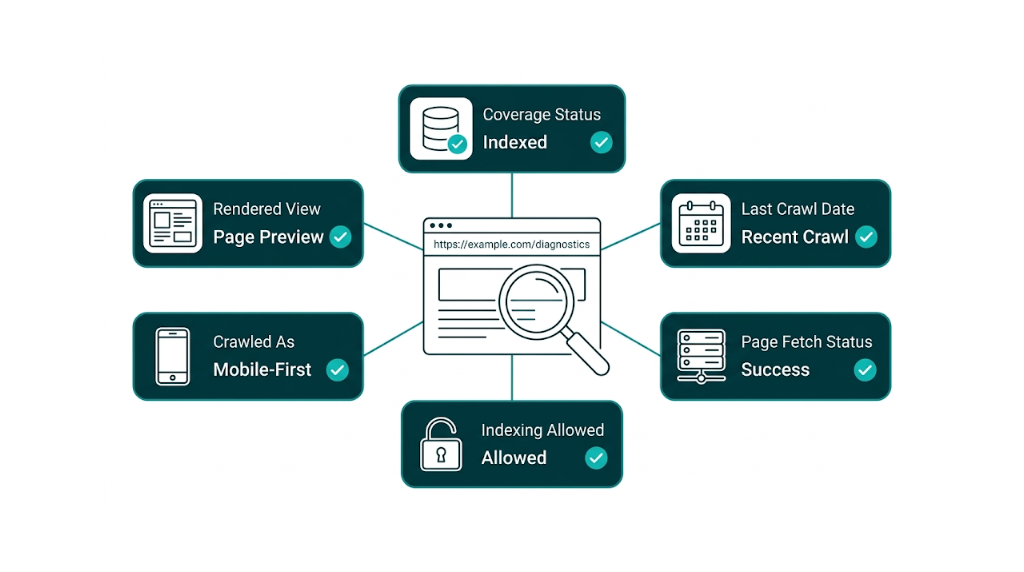
The most important data points in the URL Inspection result:
Coverage status - Is the page indexed. If not, what's the reason. This mirrors the Pages report for a single URL, and it's the first stop for any one-off debugging.
Last crawl date - When did Googlebot last visit this page? If a high-priority URL was last crawled three months ago, treat that as a signal. The usual culprits: the page is orphaned (no internal links), the server throws intermittent errors, or Google deprioritised it in crawl scheduling.
Crawled as - Which Googlebot user agent crawled the page? Googlebot Smartphone is the primary crawler for mobile-first indexing. If you see Googlebot Desktop here on a page that should be evaluated under mobile-first, chase the cause.
Page fetch - Did Googlebot retrieve the page? An "Error" here - a server error or redirect error - often explains why a page won't index even when it loads fine in a normal browser session.
Indexing - Was the page allowed to be indexed? This surfaces noindex tags and X-Robots-Tag headers that block indexing by accident.
Enhancements - Does the page have valid structured data, Core Web Vitals data, or other enhancement signals?
The "Test Live URL" function helps validate fixes. After you've resolved an issue - removed an erroneous noindex tag, fixed a redirect loop, improved page content - run "Test Live URL" to fetch the current version of the page as Googlebot sees it. That confirms the fix is live before you request indexing.
Only request indexing once the live test matches what you expect. Submitting a broken URL for indexing burns crawl budget and doesn't speed anything up.
For JavaScript-heavy pages, the URL Inspection tool's rendered screenshot matters. Google's JavaScript SEO documentation notes that Googlebot renders JavaScript, but rendering happens in a second wave after initial crawling - so JavaScript-dependent content might not show up at crawl time. If the rendered screenshot in URL Inspection shows a blank page or missing sections, your rendering pipeline is failing in a way that blocks indexing.
Core Web Vitals in GSC: Reading Field Data to Prioritise CWV Fixes
The Core Web Vitals report in GSC (under Experience > Core Web Vitals) does something PageSpeed Insights can't. It aggregates field data from real Chrome users across all pages on your site, then groups those pages by performance status - Good, Needs Improvement, or Poor - for both mobile and desktop.
That difference matters because lab data (what PageSpeed Insights generates by simulating a page load) doesn't always match what users see. A page might score 90 in PageSpeed Insights because the test runs on a fast connection with no browser extensions. Real traffic doesn't look like that. If your users skew toward mid-range Android devices on 4G connections, the performance can degrade hard even when lab scores look fine.
GSC's Core Web Vitals report pulls from the Chrome User Experience Report (CrUX) data - measurements from real users - and that's the dataset Google uses to evaluate your site for ranking purposes. Understanding how these signals interact with your broader SEO metrics to track helps you prioritise fixes with the most ranking impact.
The three Core Web Vitals metrics currently measured in GSC:
- Largest Contentful Paint (LCP) - Time until the largest visible content element loads. Good: under 2.5 seconds. Poor: over 4 seconds.
- Cumulative Layout Shift (CLS) - Visual stability. How much does the page layout shift during load? Good: under 0.1. Poor: over 0.25.
- Interaction to Next Paint (INP) - Responsiveness to user interactions. INP replaced First Input Delay (FID) in March 2024. Good: under 200ms. Poor: over 500ms.
Those metrics show up as URL groups, not as a long list of individual URLs with scores. The GSC report groups pages into URL groups based on similar performance characteristics rather than showing individual URL scores (individual scores are available in PageSpeed Insights). That grouping is the point. It lets us spot patterns fast.
Patterns are where the time savings are. If 200 product pages all fail on LCP, the root cause usually sits in a shared template element (an unoptimized hero image, render-blocking CSS), not in 200 separate page-level issues.
How to use the CWV report to prioritise fixes:
Start with mobile Poor URLs. These carry the most direct ranking impact. Click into the "Poor URLs" list, identify the dominant failing metric (LCP, CLS, or INP), and then cross-reference PageSpeed Insights on a representative URL from that group to get specific recommendations.
Representative URL is the key phrase. Fix the template-level issue once, ship it, and then watch the GSC CWV report over 28 days (the data window GSC uses) to confirm the shift.
One workflow we see strong technical SEO teams follow: after deploying a CWV fix - say, converting product images to WebP and adding explicit width/height attributes to reduce CLS - use the Performance report's date comparison feature to check whether CTR or average position moved for those pages in the weeks after release. CWV improvements don't always trigger immediate ranking movement. Still, tracking the correlation over 4-8 weeks gives you evidence you can report upward without guessing.
Don't ignore the "Needs Improvement" category. A page in "Needs Improvement" is one threshold away from "Poor." For high-traffic pages, closing that gap before it tips into Poor territory is proactive technical SEO.
Crawl Stats and the Sitemaps Report: Diagnosing Crawl Budget Waste
Crawl budget is finite. On large sites - e-commerce platforms, news sites, large SaaS documentation hubs - how Google allocates crawl capacity across your URLs shapes how fast new and updated content gets indexed. The Crawl Stats report (under Settings > Crawl Stats) and the Sitemaps report (under Indexing > Sitemaps) give us the data to spot crawl waste and tie it back to fixes.
The Crawl Stats report shows you:
- Total crawl requests over the past 90 days
- Average response time - slow server response wastes crawl budget on wait time rather than page processing
- Crawl requests by response type - what percentage of crawled URLs returned 200, 301, 404, or 5xx responses
- Crawl requests by file type - are you burning crawl budget on CSS, JavaScript, or image files that don't need individual crawling?
A healthy crawl profile means most requests come back as 200s and response time stays tight. A site where 20-30% of crawl requests hit 301 redirects is wasting budget - Googlebot follows the redirect, but each hop consumes resources. We audit redirect chains and collapse multi-hop redirects down to single-hop wherever possible. Clean it up once and crawl efficiency improves across the site.
That crawl efficiency shows up again in sitemaps. The Sitemaps report shows which XML sitemaps you've submitted and, critically, the ratio of submitted URLs to indexed URLs. If you've submitted a sitemap with 5,000 URLs and only 1,200 are indexed, that gap is a diagnostic signal. It doesn't necessarily mean 3,800 pages have problems - some may be correctly excluded - but it warrants investigation.
Common crawl budget waste sources to eliminate:
- Faceted navigation URLs (e.g., /products?colour=red&size=M) with no unique content
- Paginated archive pages beyond page 2 or 3 that generate no Search traffic
- Session ID parameters appended to URLs (e.g., ?sessionid=abc123)
- Duplicate content served at multiple URLs without canonicalisation
- URLs blocked by robots.txt that are still being discovered and queued (blocking in robots.txt prevents crawling but not discovery)
The fastest wins usually come from URL reduction. Per Google's crawl budget documentation, the most effective way to reclaim crawl budget for priority pages is to reduce the total number of URLs Google needs to evaluate. That means tighter robots.txt rules for parameter URLs, noindex tags on low-value paginated pages, and consolidating near-duplicate content through canonicals or redirects.
Clean sitemaps support that same goal. Submit clean, accurate sitemaps that only include URLs you want indexed. A sitemap that includes 404 pages, noindex pages, or redirect URLs confuses Google's crawl prioritisation and wastes the budget allocated to processing your sitemap. For e-commerce sites in particular, link building for e-commerce compounds these gains by directing crawl demand toward your highest-value pages through authoritative external signals.
Manual Actions and Security Issues: The GSC Reports That Demand Immediate Attention
Manual actions and security issues are the two GSC reports that need attention right away - not next sprint, not next month. Both can crush search visibility.
Manual Actions (under Security & Manual Actions > Manual Actions) show up when a human Google reviewer decides part or all of your site violates Google's spam policies. A manual action suppresses affected pages or, in severe cases, the whole site in search results. The usual causes are unnatural inbound links, thin or auto-generated content, cloaking, and hidden text. The notice in GSC tells you whether the action is site-wide or partial, and it calls out the policy violation.
The remediation process:
- Pull the exact violation from the manual action description
- Fix the root cause - disavow spammy links, remove auto-generated pages, correct cloaking
- Write down what you changed and the reason
- Submit a reconsideration request in GSC that explains the issue and the cleanup
Reconsideration requests go to humans. They take time - usually 2-4 weeks. File before the issue is fixed and you burn that window, and reviewers won't give you the benefit of the doubt on the next pass.
Security Issues (under Security & Manual Actions > Security Issues) flag hacking, malware, deceptive pages, or harmful downloads. Security issues hit user safety, which means Google can slap a warning in the SERP - "This site may be hacked" - and tank click-through rate even for pages that aren't infected. Treat any security issue as a P1 incident. Pull in your host and a security specialist, clean the infection, then request a review in GSC.
Check both reports weekly. Neither sends email alerts by default unless you've turned on GSC email notifications - do that now if you haven't.
Rich Results and Structured Data Errors: Using GSC's Enhancement Reports
Those same notifications won't save you from schema breakage. The Enhancement reports will.
Structured data is one of the best technical SEO bets we have. Schema, implemented properly, can earn rich results in Google Search - star ratings, FAQs, product prices, how-to steps - and lift click-through rate. But rich results only show up when Google can parse your markup. GSC's Enhancement reports spell out whether Google can read it. Understanding what SERP features are and how structured data feeds into them helps you prioritise which schema types to implement first.
Under the Enhancements section in the left nav, GSC creates a separate report for each structured data type it detects on your site. The Google structured data search gallery lists every schema type eligible for rich results in Google Search - from Product and Review to FAQ, HowTo, and Event. If you're using any of those, expect a matching Enhancement report in GSC.
Each report buckets pages into:
- Valid - Eligible for rich results
- Valid with warnings - Works, but you're missing recommended properties
- Error - Broken enough to block rich result eligibility
Start with errors. Common structured data errors include:
- Required properties missing, like Product schema without
nameoroffers - Invalid values, like a
ratingValueoutside the allowed range - Content mismatch - structured data describes content that isn't on the page (a policy violation)
- JSON-LD that won't parse due to syntax issues
Open an error inside the Enhancement report and you'll get the affected URLs plus the exact error message. Fix the schema, then use the URL Inspection tool to confirm the update is live and the markup now parses. GSC usually reflects the change in the Enhancement report within a few weeks.
Valid with warnings deserves time too, just not before errors. A Product schema missing review or aggregateRating can still qualify, but it won't show star ratings in search. Add those properties only where you have real review data to back them up, and CTR on product pages tends to move.
One workflow note: template changes can break everything at once. If you're rolling out structured data across hundreds of pages through a shared template, watch the Enhancement report closely for 2-3 weeks after deployment. When the template is wrong, every page that uses it is wrong, and catching that early contains the blast radius.
The Performance Report for Technical SEO: Finding Pages That Rank But Don't Click
Most SEOs use the Performance report to track rankings and traffic. Technical SEOs should use it for something more specific: find pages where technical issues suppress click-through rate, then prove the fixes moved the numbers.
The Performance report (under Performance > Search Results) shows impressions, clicks, average CTR, and average position for your pages and queries. The default view is fine. The diagnostic value shows up once you start filtering and comparing.
Finding pages that rank but don't click:
Set the date range to the last 3 months. Click "Pages" in the table below the graph. Sort by Impressions (high to low). Then scan for pages with high impressions but CTR well below what their average position should pull. A page ranking at position 4 with a 1% CTR should be at 8-10% based on typical CTR curves. That gap is the signal.
The gap usually comes from technical causes:
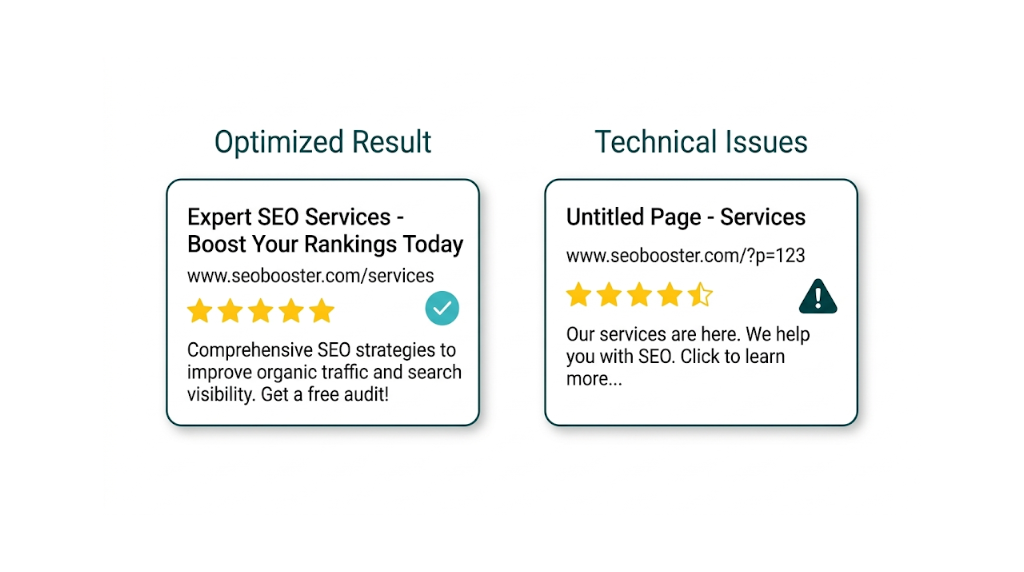
- Missing or broken title tag - GSC's title comes from what Google renders, not only your HTML. If JavaScript overwrites the title tag and Google doesn't render it properly, the snippet may show a generic or auto-generated title.
- Missing meta description - Google generates snippets automatically, but a solid meta description lifts CTR. If the snippet reads poorly, confirm the meta description exists and renders the way you expect.
- Rich result eligibility lost - A page that used to show star ratings or FAQ snippets but lost them (due to a structured data error) often takes a CTR hit even if position stays flat.
- URL canonicalisation issues - Impressions accrue to a non-canonical URL instead of the intended canonical.
Using date comparison to validate technical fixes:
This is the GSC feature technical SEO teams ignore most. After deploying a fix - correcting a broken title tag, restoring structured data, fixing a canonical - use the Performance report's date comparison feature (click the date range, then "Compare") to set a before period and an after period of equal length. Filter to the affected pages. If CTR or clicks improved in the after period, you have proof the fix worked.
Proof matters.
That before/after comparison turns GSC into a measurement framework, not just a discovery tool. Senior technical SEOs and technical directors use this workflow to show the commercial value of technical fixes by tying a 2% CTR lift on a high-impression page to real traffic and revenue impact. Teams that pair this with a managed SEO service can delegate the ongoing monitoring while retaining full visibility into the data that drives decisions.
Revenue impact starts with impressions. Use the Performance report to spot pages losing impressions over time. A page with declining impressions (not just declining position) points to partial or full deindexing, a canonical change, or a site structure change. The impressions trend is often the first indexing warning, well before it becomes obvious in the Pages report.
A Repeatable GSC Technical SEO Audit Workflow (Weekly, Monthly, Quarterly)
The difference between teams that use GSC well and those that don't isn't knowledge - it's cadence. A repeatable workflow catches issues early, validates fixes, and keeps work from slipping between audits. Below is a time-boxed framework built for SEO managers and technical SEOs at agencies and in-house teams.
Weekly GSC Checks (20-30 minutes)
Weekly checks focus on urgent issues and trend monitoring. Leave these for a month and they pile up fast.
- Manual Actions and Security Issues - Check both reports. Any notification here is P1. If you've configured GSC email notifications, treat this as a backup check.
- Pages report - new error categorize - Look for new status categorize or spikes in existing ones. A sudden jump in "Server error (5xx)" or "Blocked by robots.txt" often traces back to a bad deployment.
- Performance report - impression and click trends - Confirm traffic stays stable. A drop in impressions over the past 7 days needs investigation. Use date comparison to confirm the drop is real and not a reporting delay.
- URL Inspection spot checks - For pages you've recently fixed or launched, run URL Inspection and confirm indexing status.
Monthly GSC Checks (60-90 minutes)
Monthly checks are diagnostic. We're looking for patterns and trends that weekly spot-checks miss. Small shifts show up here.
- Pages report full review - Export the full non-indexed URL list. Categorize by status. Track volume changes for each category against last month. Investigate any category that grows by more than 10%.
- Core Web Vitals report - Check the mobile Poor URL count and record the direction month over month. If we deployed CWV fixes last month, confirm the field data moves the right way.
- Crawl Stats report - Review average response time and the breakdown of crawl requests by response type. Flag any increase in 5xx responses or redirect response rates.
- Sitemaps report - Confirm submitted sitemaps return no errors. Check the submitted-vs-indexed ratio, then dig into any large gaps.
- Enhancement reports - Review structured data error counts. Confirm last month's fixes cleared.
- Performance report - page-level CTR audit - Identify pages with high impressions and below-average CTR. Flag them for title tag, meta description, or rich result review. Ahrefs' breakdown of how to use Google Search Console for SEO covers additional query-level filtering techniques worth layering into this monthly review.
Quarterly GSC Checks (Half-day)
Quarterly checks are strategic. This is where we assess overall site health, validate the impact of technical work from the quarter, and plan the next cycle.
- Index coverage trend analysis - Track how total indexed page count changed over the quarter. Compare that trend to content production. If indexed pages shrink while content output stays stable, treat it as a serious signal.
- Performance report date comparison - quarter over quarter - Compare Q-current to Q-previous for impressions, clicks, and average CTR across the whole site and key page groups. Tie movement back to specific technical work where the timeline supports it.
- Crawl budget audit - Review the Crawl Stats report across the full 90-day window. Pull the top crawled URL patterns, then decide whether those URLs deserve the crawl allocation they're taking.
- Structured data coverage review - Confirm eligible page types implement schema. Check whether any Enhancement report categorize still haven't been activated.
- GSC API integration review - For agencies managing multiple properties, the GSC API enables automated data pulls into dashboards or spreadsheets. Quarterly, review whether the API setup captures the right metrics and whether any new properties need integration.
One final point on workflow: document everything. Keep it boring and consistent. When we fix an issue, record the date, the fix applied, and the GSC metric we plan to watch to confirm the change. That audit trail makes quarterly reporting straightforward. It also gives us evidence we can use to show the commercial value of technical SEO to stakeholders who don't live inside GSC. Pairing this documentation habit with solid SEO reporting practices makes it far easier to communicate technical wins to non-technical decision-makers.
Frequently Asked Questions About Google Search Console for Technical SEO
What is Google Search Console used for in technical SEO?
Google Search Console gives technical SEOs direct access to Google's crawl and index data for a site. It surfaces indexing failures, Core Web Vitals field data, crawl stats, manual actions, structured data errors, and search performance metrics. Unlike third-party crawlers, GSC shows what Google's bot did on the site - not a simulation - so it's the best source for diagnosing technical issues that hit search results.
What is the difference between 'Crawled - currently not indexed' and 'Discovered - currently not indexed'?
These two statuses point to different root causes and they don't share the same fix.
"Crawled - currently not indexed" means Google visited the page, processed the content, and chose not to index it. Treat that as a content quality problem. The fix is to improve the page's depth, relevance, or differentiation, or consolidate it into a stronger page.
"Discovered - currently not indexed" means Google found the URL but hasn't crawled it yet. Treat that as a crawl budget problem. The fix is structural: better internal linking, cleaner sitemaps, and less crawl waste from low-value URLs.
Confusing these two statuses leads to wasted remediation effort.
What does the Core Web Vitals report in GSC show, and how is it different from PageSpeed Insights?
The GSC Core Web Vitals report shows field data - aggregated real-user measurements from Chrome users on the site - grouped by performance status (Good, Needs Improvement, Poor) for LCP, CLS, and INP across mobile and desktop. PageSpeed Insights generates lab data by simulating a page load under controlled conditions.
Field data reflects actual user experience and it's what Google uses for ranking. Lab data helps debug. Used together, GSC tells us which pages have problems at scale, and PageSpeed Insights points to what triggers the issue on a specific URL.
How do I identify crawl budget waste using Google Search Console?
Use the Crawl Stats report (under Settings > Crawl Stats) to review the breakdown of crawl requests by response type. A high proportion of 301 redirects, 404 errors, or 5xx server errors indicates crawl waste. Cross-reference with the Sitemaps report to check the submitted-vs-indexed URL ratio. Then audit the site for common waste sources: faceted navigation URLs,session ID parameters, paginated archive pages, and duplicate content without canonicalisation. Eliminating these frees crawl budget for high-priority pages.
How often should I check Google Search Console for technical SEO issues?
Weekly for urgent signals - manual actions, security issues, and sudden drops in impressions or spikes in crawl errors.
Monthly for diagnostic review - Pages report trends, Core Web Vitals changes, crawl stats, and structured data errors.
Quarterly for strategic assessment - index coverage trends, quarter-over-quarter performance comparison, and crawl budget analysis.
Teams managing multiple properties should use the GSC API to automate data collection and build dashboards that keep monitoring manageable.
Can Google Search Console replace tools like Screaming Frog or Sitebulb for technical audits?
No - and it shouldn't try to.
GSC and crawler tools serve different diagnostic jobs. Screaming Frog and Sitebulb simulate crawling and surface issues like broken internal links, missing tags, and redirect chains at scale. GSC shows what Google did on the site - real crawl behaviour, real index decisions, real user performance data. Search Engine Journal's technical SEO guide covers how these tools complement each other across a full audit workflow.
The strongest technical SEO workflow uses both: crawlers for site-wide structural audits, GSC for validating what Google sees and confirming fixes worked. GSC matters for the second part because no third-party tool has access to Google's first-party crawl and index data.
related Blog Posts




Join 2,600+ Businesses Growing with Rhino Rank
Sign Up
Stay ahead of the SEO curve
Get the latest link building strategies, SEO tips and industry insights delivered straight to your inbox.