
 Back to all posts

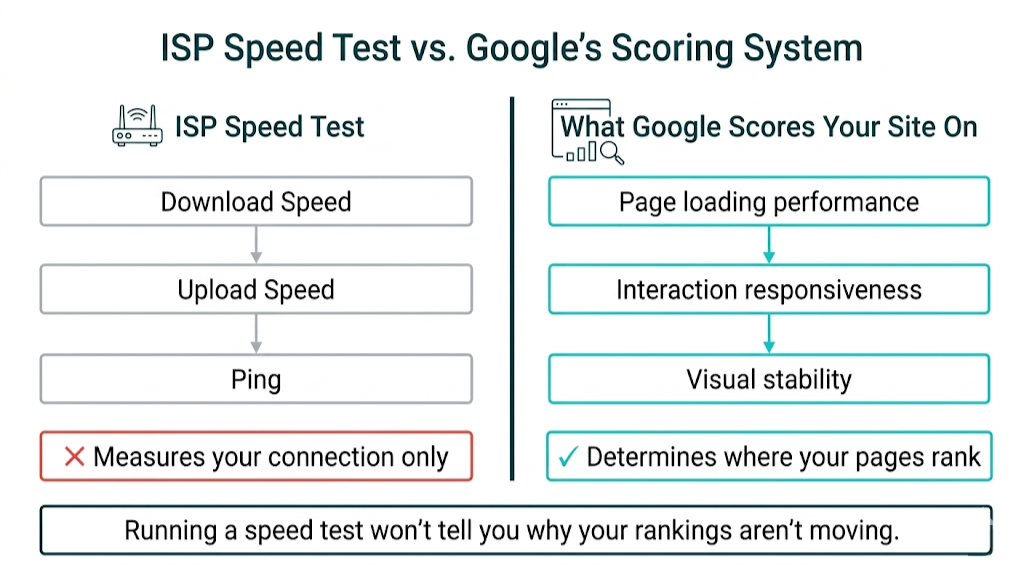
Every SEO professional has run a speed test at some point and felt a quiet reassurance when the numbers came back green. Fast download speed, low ping, solid upload. Job done. Wrong. The CenturyLink speed test site, Ookla's Speedtest, Google's own wifi speed test widget, and every other ISP-facing tool measure one thing: the bandwidth between your device and the internet. None of them measure what Google scores your website on. That gap costs site owners rankings, conversions, and the full return on their link building investment.
The bottom line: Running an internet speed test - whether through the CenturyLink speed test site, a fast speed test tool, or the built-in Google speed test - tells you nothing about your Core Web Vitals scores, your server's Time to First Byte, or the interaction latency that Google's algorithms evaluate when deciding where your pages rank. This guide explains what Google measures, why ISP speed tests are the wrong diagnostic tool for SEO problems, and what a proper technical performance audit looks like for site owners who want rankings that move.
This matters most to SEO managers and agency owners spending real budget on link acquisition and content production, then wondering why rankings aren't responding. The answer often sits in PageSpeed Insights, not in a CenturyLink speed test result.
What the CenturyLink Speed Test Site Actually Measures (And What It Misses)
The CenturyLink speed test site at https://www.centurylink.com/home/help/internet/internet-speed-test.html runs a standard broadband diagnostic. It sends data packets between your device and a nearby test server, then reports three numbers: download speed (how fast data arrives at your device), upload speed (how fast your device sends data out), and ping (round-trip latency in milliseconds to that test server). There's also a companion internet speed test app at https://www.centurylink.com/home/help/internet/internet-speed-test/internet-speed-test-app.html that runs the same test on mobile. These tools help confirm whether your broadband plan delivers what you're paying for.
But those three numbers miss the stuff that affects SEO.
They measure your connection, not your website. A CenturyLink speed test result of 500 Mbps download tells you your home or office connection moves data fast. It doesn't tell you how quickly your web server answers an HTTP request, how long the browser spends chewing through JavaScript before a user can click, or whether your hero image blocks above-the-fold rendering. Different systems. Mixing them up is one of the most common diagnostic mistakes we see when site owners try to troubleshoot weak organic performance.
That same mismatch shows up with geography. If a user in Manchester hits your site and your server sits in Virginia, the CenturyLink speed test you ran from an office in Denver measures a different path through the network. Google's Chrome User Experience Report (CrUX) collects real-world field data from actual Chrome users loading your actual pages - across their devices, browsers, and network connections. That dataset feeds your Core Web Vitals scores in Google Search Console. Your personal broadband speed doesn't factor into that calculation.
Ping is the one ISP metric that sits closest to something SEO-adjacent. Low ping usually points to low network latency, which can line up with faster server response. But the overlap ends fast. A ping of 12ms to a CenturyLink test server doesn't tell you whether your hosting stack delivers a 900ms Time to First Byte (TTFB) because of a slow database query or missing server-side caching. Those are the numbers that shift rankings.
The gap is big. Millions of people run a CenturyLink speed test in our area or use a fast speed test tool every month, looking for answers to performance problems. ISP tools answer one narrow question: is our broadband working as advertised? For everything else - especially anything tied to Google rankings - you need different tools and a different mental model. Understanding key SEO metrics to track is a good place to start building that model.
How Google Actually Measures Page Speed: Core Web Vitals vs. Raw Bandwidth
Google confirmed Core Web Vitals as a ranking signal in 2021, and the framework has changed a lot since then. According to Google Search Central's Core Web Vitals documentation, the signals measure real-world user experience across three dimensions: loading performance, interactivity, and visual stability. Raw bandwidth - the number a Wi-Fi speed test or ISP diagnostic reports - doesn't show up in that framework. Not as a direct input. Not as a proxy. Not as a tiebreaker.
Google measures how people experience your pages in the field. That data comes from CrUX, which aggregates anonymized Chrome browser telemetry from real page loads. This is field data, not lab data, so it captures the conditions visitors actually hit: slow mobile connections, mid-range Android devices, and congested networks at peak hours.
Lab tests still matter, but for a different reason. A developer running a PageSpeed Insights test from a wired gigabit connection in a data centre city gets lab data. Field data is what feeds the ranking signal.
The three current Core Web Vitals are Largest Contentful Paint (LCP), Interaction to Next Paint (INP), and Cumulative Layout Shift (CLS). Each one maps to a specific way a page feels slow or unstable. Each one has thresholds that determine whether the page passes or fails Google's Page Experience signal.
Core Web Vital | What It Measures | Good | Needs Improvement | Poor |
|---|---|---|---|---|
LCP | Loading performance | Under 2.5s | 2.5s - 4.0s | Over 4.0s |
INP | Interaction responsiveness | Under 200ms | 200ms - 500ms | Over 500ms |
CLS | Visual stability | Under 0.1 | 0.1 - 0.25 | Over 0.25 |
No Internet Speed Test - not the CenturyLink speed test site, not a google speed test widget, not any fast speed test tool - reports any of these three metrics. They're measuring different things.
Largest Contentful Paint: Why Your Hero Image Is Probably Your Biggest SEO Risk
LCP measures the time from page load start to when the largest visible content element finishes rendering. In practice, that element is usually an image - most often the hero image at the top of the page. That's the risk.
For most marketing sites, product pages, and blog posts, the LCP element is a large above-the-fold image that lands late because it's uncompressed, unoptimized, or stuck behind render-blocking resources.
Google's threshold is clear: LCP under 2.5 seconds is "Good," between 2.5 and 4.0 seconds "Needs Improvement," and anything above 4.0 seconds is "Poor." A poor LCP score puts you at a ranking disadvantage. And most LCP failures don't come from weak broadband. They come from things you control on the page and the server.
Common causes look like this:
- Server-side delays. Slow TTFB means the browser can't even start pulling the hero Image.
- Image bloat. A 2MB JPEG where a 180KB WebP would do the same job.
- Render-blocking JavaScript that holds up the first meaningful paint.
Here's a scenario we see often: an e-commerce brand runs a CenturyLink speed test, sees 400 Mbps download, and calls performance "handled." Meanwhile, their product category pages sit at a 3.8-second LCP because the hero banner is a 3.4MB PNG loaded via a third-party image CDN, with no lazy loading configuration and no preload hint in the HTML. Their broadband speed doesn't fix that. The image does. And that fix doesn't require renegotiating an ISP contract.
Diagnosing LCP means opening Google PageSpeed Insights, running the test on the specific page URL, and checking the "LCP element" diagnostic in the lab data section. It will name the exact element driving the delay and usually points to the cause.
Interaction to Next Paint: The 2024 Metric Change That Caught Most SEOs Off Guard
On March 12, 2024, Google replaced First Input Delay (FID) with Interaction to Next Paint (INP) as an official Core Web Vital. That swap changed how Google judges responsiveness, and most competing pages in this SERP were written before it happened - or they skip it.
FID measured the delay before the browser could respond to the very first user interaction on a page. INP raises the bar. It tracks the worst-case interaction latency across the entire page lifecycle - every click, tap, and keyboard input from page load to page close. As Ahrefs' Core Web Vitals guide explains, INP flags JavaScript-heavy sites that used to pass FID because the first interaction landed between long JS tasks, while the rest of the session still felt slow.
Under 200ms counts as a "Good" INP score. Over 500ms is "Poor" and triggers a direct ranking signal penalty. Heavy third-party scripts tend to push teams into the red fast. So do complex React or Vue frontends, plus analytics tag stacks that fire on every interaction.
A lot of sites that looked technically fine under FID found INP issues they weren't even tracking. Running a technical SEO audit is the most reliable way to surface these hidden performance problems before they cost you rankings.
Cumulative Layout Shift: The Silent Ranking Killer That No Speed Test Will Catch
CLS measures visual instability - how much page elements move after the initial render. A CLS score of 0.1 or below is "Good." Above 0.25 is "Poor." No ISP speed test, no wifi speed test, and no broadband diagnostic will ever show a CLS problem, because CLS has nothing to do with connection speed.
CLS shows up in the usual places: images that load without dimensions, web fonts that swap in and shove content down, ads or embeds that inject into the layout after the page paints, and dynamic content that appears above existing text. The experience is rough - you line up a click, the page shifts, and you hit something else. Google penalizes that because it's a real usability failure, not a lab-only issue.
Cookie consent banners are a common offender, especially when they load after render and push the whole page down. Web fonts cause the same kind of shift when teams skip font-display: swap and don't match fallback sizing. These require code fixes, not hosting changes, and an internet speed test tool won't surface them.
Server Speed vs. ISP Speed: The Difference That Determines Your Google Rankings
This is the distinction most site owners miss. And it keeps showing up in audits.
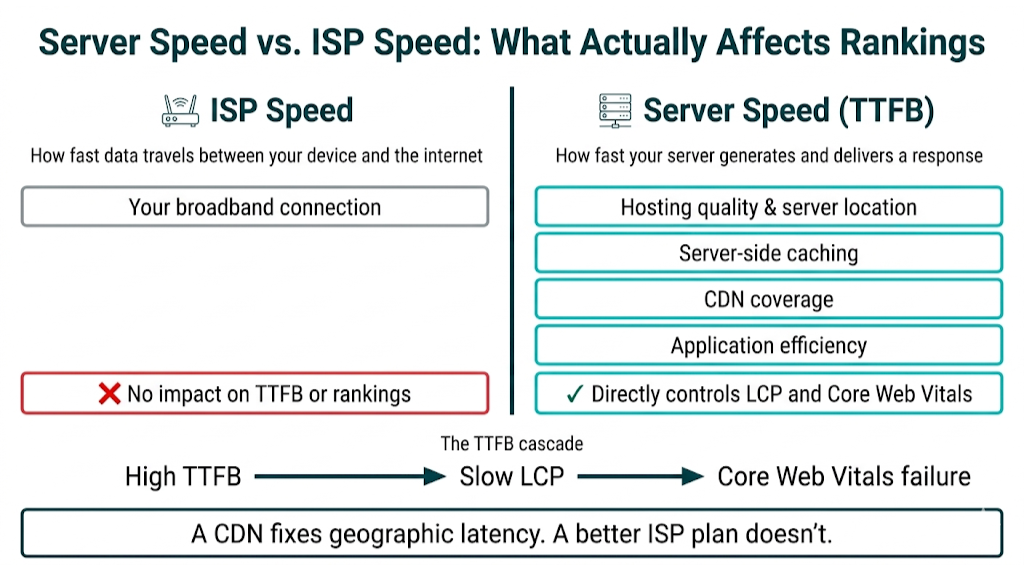
Your ISP speed is how fast data travels between your device and the internet. Your server speed is how fast your web server generates and delivers a response to a browser requesting your page. Different systems. Different owners. Only one feeds into rankings.
Time to First Byte (TTFB) is the server-side metric that matters most. It measures the time between a browser sending an HTTP request and receiving the first byte of the server's response. Google's guidance suggests TTFB should be under 800ms for a "Good" rating, though sub-200ms is achievable with proper server configuration and caching.
That first byte controls the rest of the waterfall. Until it arrives, the browser can't parse HTML, can't discover the LCP image, and can't start pulling critical CSS or JavaScript. High TTFB turns into slow LCP, and slow LCP turns into a Core Web Vitals problem.
TTFB comes from factors that have nothing to do with your broadband plan:
- Hosting quality and server location - put your site on shared hosting in a single US data centre and European visitors wait, no matter how fast their ISP is.
- Server-side caching - leave WordPress uncached, force a database hit on every request, and TTFB lands at 1.5-3 seconds even on acceptable hosting.
- Content Delivery Network (CDN) coverage - a CDN stores cached copies of pages on edge servers worldwide, which cuts TTFB for users far from origin.
- Application-level inefficiencies - slow database queries. Plugin bloat in WordPress. Synchronous API calls that block response generation.
Here's what that looks like in the real world. A mid-market SaaS team spending $3,000 per month on paid search and link building, running on a $15/month shared host with no CDN and no server-side caching, will run into TTFB issues that no broadband upgrade fixes. They need server-side changes. Move to managed hosting like Kinsta or WP Engine, or run a well-configured VPS with Redis caching and Cloudflare in front of it, and you can drop TTFB from 2.1 seconds to under 150ms. That shift flows straight into LCP and, by extension, Core Web Vitals.
The geo piece matters for the same reason. Google's CrUX data aggregates field measurements from real users around the world. If 40% of your organic traffic comes from the UK and your server is in Oregon, those UK visitors see transatlantic latency baked into TTFB - even on fast home broadband. A CDN fixes that. A better ISP plan doesn't.
Why Slow Pages Lose Rankings: The Data Behind Google's Page Experience Signal
The business case for Core Web Vitals optimization goes beyond ranking signals. Site speed hits revenue, and the numbers back it up.
According to industry performance data, each additional second of load time causes a 7% drop in conversions and a 32% increase in bounce rate. These aren't rounding errors. If a site converts at 3% and you add two seconds of load time, conversions slide toward 2.6%. At real traffic volumes, that turns into lost revenue every month. And that's before rankings slip and organic sessions drop with them.
Google's Page Experience signal, which includes Core Web Vitals, is a confirmed ranking factor. Google Search Central spells it out: pages that pass all three Core Web Vitals thresholds are eligible for a ranking boost compared with pages that don't. In competitive SERPs where several pages have strong backlink profiles and tight content, Core Web Vitals becomes the tiebreaker.
That tiebreaker shows up even more in weaker niches. If your Core Web Vitals scores are poor, Google has a clean reason to favor thinner pages that simply load faster. This is one of the common SEO mistakes to avoid that can quietly undermine an otherwise solid strategy.
Core Web Vitals also runs on field data, not your best-case lab run. Google doesn't only care whether a page looks fast in a lab environment - it cares whether real users experience it as fast. A page can score 90 in PageSpeed Insights lab data and still carry a "Poor" CrUX field dataset, because real mobile users on 4G connections see a 4.2-second LCP. Lab scores help you debug. Field scores drive the evaluation.
The 75th percentile rule is the part teams miss. Google grades Core Web Vitals using the 75th percentile of real-world measurements for that URL. In practice, 75% of users need to land in "Good" for the page to pass. If you optimize on fast office Wi-Fi and call it done, the slowest quartile of your users - often users on a mobile device with weaker connections - sets the number that matters.
That reality also kills the idea that an ISP test can guide SEO work. You can't diagnose or fix Core Web Vitals with a CenturyLink speed test or any other ISP tool. The data you need lives in Google Search Console, PageSpeed Insights, and CrUX.
How to Run a Proper Website Speed Audit (Beyond the CenturyLink Speed Test)
A proper technical performance audit for SEO follows a sequence. Start with field data - what users see - then work backward to the causes. Here's the framework we use.
Step 1: Check Google Search Console Core Web Vitals report. This is your field data baseline. Head to Search Console, open the "Experience" section, and review the Core Web Vitals report. You'll see how many URLs have "Poor," "Needs Improvement," or "Good" scores, split by mobile and desktop. This is the dataset Google uses for ranking decisions. Start here.
Step 2: Run PageSpeed Insights on your highest-traffic pages. Go to https://pagespeed.web.dev/ and test your homepage, top landing pages, and any pages pulling meaningful organic traffic. PageSpeed Insights shows field data from CrUX when enough data exists, plus lab data from Lighthouse. Read the field data first. Then use the lab output to pinpoint what's driving it.
Step 3: Identify your LCP element. PageSpeed Insights will name the LCP element - usually an image, a text block, or a background image. Capture its size, format, and how it's requested and rendered. Fixing this element moves the needle faster than chasing minor warnings.
Step 4: Check TTFB. In the PageSpeed Insights lab data, find "Time to First Byte" under diagnostics. Anything above 800ms needs server-side work - caching, a hosting upgrade, or a CDN rollout.
Step 5: Audit INP with Chrome DevTools. Open Chrome DevTools, jump into the Performance panel, and record a session where you click, scroll, and interact like a user. Look for long tasks over 50ms during interaction events. Those tasks usually explain your INP pain. Third-party scripts cause a lot of them.
Step 6: Check CLS with the Layout Instability API. PageSpeed Insights will flag CLS and point to the elements that shift. Common fixes:
- Add explicit
widthandheightattributes to images. - Use
font-display: swap. - Reserve space for dynamic content like ads.
Step 7: Cross-reference with Google Search Console's URL Inspection tool. For URLs showing poor field data, use URL Inspection to confirm how Google renders the page and whether crawl or rendering issues stack on top of performance problems.
This seven-step audit takes a couple of hours for a typical site and gives you a prioritized list of fixes you can hand to dev. It's a different job than running a CenturyLink speed test. Different tools. Different data. Different fixes.
PageSpeed Insights vs. CenturyLink Speed Test: Reading the Right Numbers for SEO
The difference is what each tool measures and who the results apply to.
The CenturyLink speed test site measures ISP connection performance. Use it to confirm your broadband plan hits its advertized speeds and to troubleshoot home network issues. The outputs - download speed in Mbps, upload speed in Mbps, and ping in milliseconds - don't map to Google rankings.
PageSpeed Insights measures your website's performance for real users. It pulls field data from CrUX (real Chrome users loading your real pages) and generates lab data from a simulated Lighthouse audit. The outputs - LCP in seconds, INP in milliseconds, CLS as a unitless score - line up with what Google's ranking systems evaluate. For SEO work, these are the numbers we watch. As Semrush's breakdown of Google PageSpeed Insights scores and their SEO impact makes clear, improving your PageSpeed score is likely to have a positive impact on your search rankings - something no ISP diagnostic can influence.
Pairing solid technical performance with effective SEO content gives every page the best possible foundation before link acquisition begins.
The 8 Technical Fixes That Move Core Web Vitals Scores the Most
These are the interventions that produce the biggest measurable improvements, ranked roughly by impact-to-effort ratio.
1. Implement server-side caching. For WordPress sites, a caching plugin like WP Rocket or W3 Total Cache with full-page caching enabled can cut TTFB from 2+ seconds to under 200ms on the first request and under 50ms on cached requests. Most small to mid-size sites get the biggest win here. Faster HTML delivery improves LCP because the browser can start rendering sooner.
2. Add a CDN. Cloudflare's free tier provides CDN coverage, DDoS protection, and edge caching that improves TTFB for geographically distributed audiences. International organic traffic makes this matter fast. In CrUX, this often separates "Poor" from "Good" LCP for a meaningful share of users.
3. Optimize and properly size images. Convert images to WebP or AVIF format. Compress them hard - a hero image should rarely exceed 200KB. Add width and height attributes to every image to prevent CLS. Use loading="lazy" on below-the-fold images. Add <link rel="preload"> for the LCP image specifically. Image work clears a large share of LCP problems on real pages.
4. Eliminate render-blocking resources. CSS and JavaScript files that load synchronously in the <head> block rendering until they're downloaded and parsed. Push non-critical JavaScript to the bottom of the page or use defer and async attributes. Inline critical CSS for above-the-fold content. The goal is simple: let the browser paint sooner.
5. Audit and reduce third-party scripts. Third-party scripts - chat widgets, analytics platforms, advertising tags, social media embeds, heatmap tools - drive poor INP. Each script that runs on user interaction adds interaction latency. Inventory every third-party script on the site, cut anything that doesn't produce measurable business value, and load the rest asynchronously.
6. Upgrade your hosting. Shared hosting becomes the bottleneck when TTFB stays above 800ms even after caching. Managed WordPress hosts like Kinsta or WP Engine, or a well-configured VPS with Nginx and Redis, will produce better TTFB. Costs go up. For sites where organic traffic drives revenue, the ROI case is usually clear.
7. Fix font loading. Web fonts often push CLS and LCP in the wrong direction. Use font-display: swap to prevent invisible text during font load. Preload critical fonts with <link rel="preload" as="font">. Use size-adjust in your font-face declarations to reduce layout shift when the fallback font swaps to the web font. Self-host fonts where possible, instead of loading them from Google Fonts or Adobe Fonts via external requests.
8. Minimize and defer JavaScript. Large JavaScript bundles that execute during page load delay interactivity and inflate INP. Use code splitting so each page loads only what it needs. Defer non-critical scripts. Remove unused JavaScript - PageSpeed Insights will flag unused code that bloats bundles without improving the page experience. For React or Vue-based sites, consider server-side rendering or static site generation to cut client-side JS execution.
Each fix is measurable, which keeps the work honest. Run PageSpeed Insights before and after each intervention, track the change in lab scores, and monitor your Search Console Core Web Vitals report for field data movement over the following 28-day collection window.
How Page Speed Affects Link Building ROI: What Agency Owners Need to Know
Link building is a significant investment. A serious link acquisition campaign - whether through curated link placements, digital PR, or niche edits - costs real time and budget. That spend only pays off if the destination page can convert authority into rankings.
The mechanics are simple. When a high-authority backlink points to your page, it passes PageRank - a ranking signal based on the authority and relevance of the linking domain. PageRank still matters, but it's one input. Page Experience signals, including Core Web Vitals, sit alongside link authority when Google decides where a page lands in the SERP.
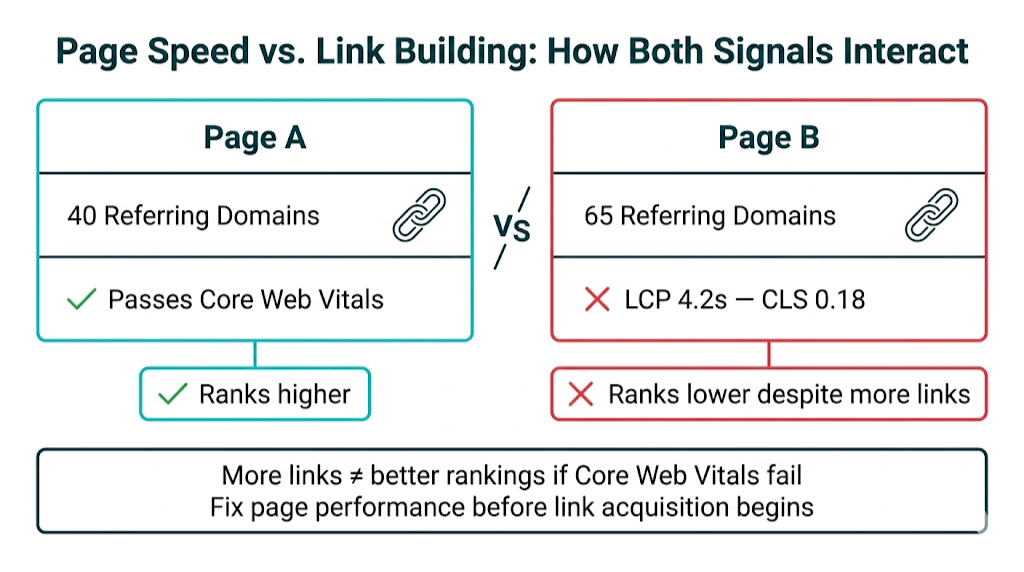
So a page with a strong backlink profile and "Poor" Core Web Vitals scores starts from behind. It can lose ground to a page with fewer links that clears all three thresholds.
Poor page performance dilutes the ranking lift you bought with link acquisition.
Take two competing pages in the same niche. Page A has 40 referring domains from relevant, mid-authority sites and passes all three Core Web Vitals. Page B has 65 referring domains from comparable sites but has a 4.2-second LCP and a CLS score of 0.18. In a competitive SERP, Page A can outrank Page B despite the link gap, because Google weighs both sets of signals and Page B fails the experience checks.
We see this in live campaigns.
At Rhino Rank, we build links to destination pages for clients across a wide range of niches. The pattern stays consistent: link building drives faster ranking movement when the destination page already sits on solid Core Web Vitals. Technically healthy pages take in link equity cleanly. They turn it into rankings with fewer wasted placements. And when the page is slow or unstable, we often need more links just to get the same movement.
That "wasted placements" problem is what agency owners and SEO managers need to manage around. Technical performance optimisation is a prerequisite for link building, not an optional add-on. Fixing Core Web Vitals before you start link acquisition doesn't slow the project down - it protects the return you're about to spend for.
If you're planning a link building campaign and you haven't run a PageSpeed Insights audit on the target URLs, run it first. It takes 20 minutes. It also decides whether your next month of links moves the needle or stalls out. If you'd prefer to have experts handle the full process, our managed link building service takes care of both strategy and execution so nothing falls through the cracks.
Frequently Asked Questions About Internet Speed Tests and Google Rankings
Does my internet speed (as measured by the CenturyLink speed test) affect my website's Google rankings?
No. Your personal broadband speed - as measured by the CenturyLink speed test site or any other ISP diagnostic - does not affect your website's Google rankings. Google measures site performance using Core Web Vitals data from real users loading your pages via CrUX. Your ISP connection speed doesn't feed that dataset.
What matters is your server's TTFB, your page's LCP element load time, your INP score, and your CLS score - and an internet speed test doesn't capture any of those.
What is the difference between an ISP speed test and a Core Web Vitals test?
An ISP speed test measures the bandwidth and latency of your broadband connection between your device and a test server. A Core Web Vitals test measures how quickly and stably your pages load and respond for real users.
The CenturyLink speed test site measures the former. Google PageSpeed Insights at https://pagespeed.web.dev/ measures the latter. Only the latter has any bearing on Google rankings.
What tools does Google use to measure page speed for SEO rankings?
Google uses the Chrome User Experience Report (CrUX) to collect real-world field data from Chrome users loading pages across the web. That data powers the Core Web Vitals scores you see in Google Search Console and PageSpeed Insights.
Lighthouse still matters for lab audits. Rankings tie back to field data from CrUX. Google uses the 75th percentile of real-user measurements for each URL to decide whether that URL passes or fails each Core Web Vital.
What is a good LCP, INP, and CLS score for Google rankings in 2024?
According to Google Search Central's Core Web Vitals documentation, "Good" thresholds are: LCP under 2.5 seconds, INP under 200ms (INP replaced FID as an official Core Web Vital on March 12, 2024), and CLS under 0.1.
Pages that meet all three thresholds at the 75th percentile of their real-user data pass Google's Page Experience signal. Pages that fail one or more thresholds compete from a weaker position in tight SERPs.
Can I have fast broadband but still have a slow website?
Absolutely - and this is one of the most important points in this entire guide. A gigabit home Internet connection has no bearing on your server's TTFB, your images' file sizes, your JavaScript bundle weight, or your CLS score. A site owner with 1,000 Mbps download speed can still run a website with a 4-second LCP and "Poor" Core Web Vitals scores.
Those are separate systems. Fast broadband means fast downloads for you as a user. Fast Core Web Vitals means a fast experience for your visitors - and that's what Google measures.
Does page speed affect link building results and SEO ROI?
Yes. Google's ranking algorithm weighs link authority signals, like PageRank from backlinks, alongside Page Experience signals such as Core Web Vitals. If a page fails Core Web Vitals thresholds, it competes at a disadvantage even with a strong backlink profile.
That hits ROI. Link building spend returns less when destination pages don't clear Core Web Vitals. Auditing and fixing performance before launching a link acquisition campaign is the most reliable way to protect and improve the ROI of that campaign.
related Blog Posts
.png)



Join 2,600+ Businesses Growing with Rhino Rank
Sign Up
Stay ahead of the SEO curve
Get the latest link building strategies, SEO tips and industry insights delivered straight to your inbox.